Playing and practising songs
Open a song, play the voice tracks, and use the practice controls.
Web + app

cori's player is built for practising, not just listening. Every song carries separate tracks for each voice part, so you can turn your own voice up, slow a tricky passage down and sing along, all from one screen. This guide gives you the overview and points to the deeper guides for each feature.
The player is in the browser at cori.music and in the app on your phone. On the web it sits as a bar along the bottom; on the phone you pull it up from below. The features (mixer, speed and repeat) are the same, only the opening and closing differs.
Open a song
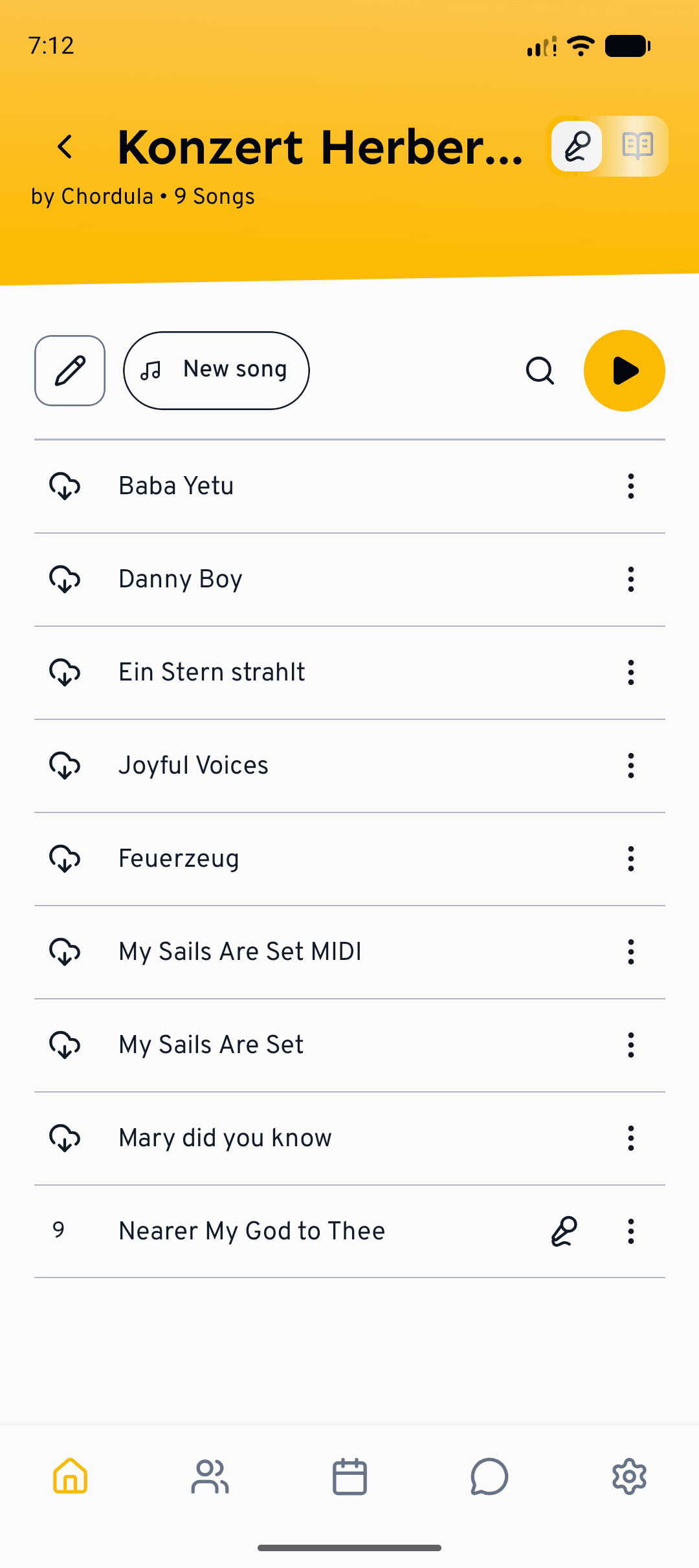
Go to Setlists and open the setlist you're rehearsing. A setlist is just the collection of songs your choir is working on.
Tap or click a song to start it. The player opens at the bottom of the screen: on the phone, pull it up to see the full controls; on the web it expands into the bar along the bottom.

Player controls
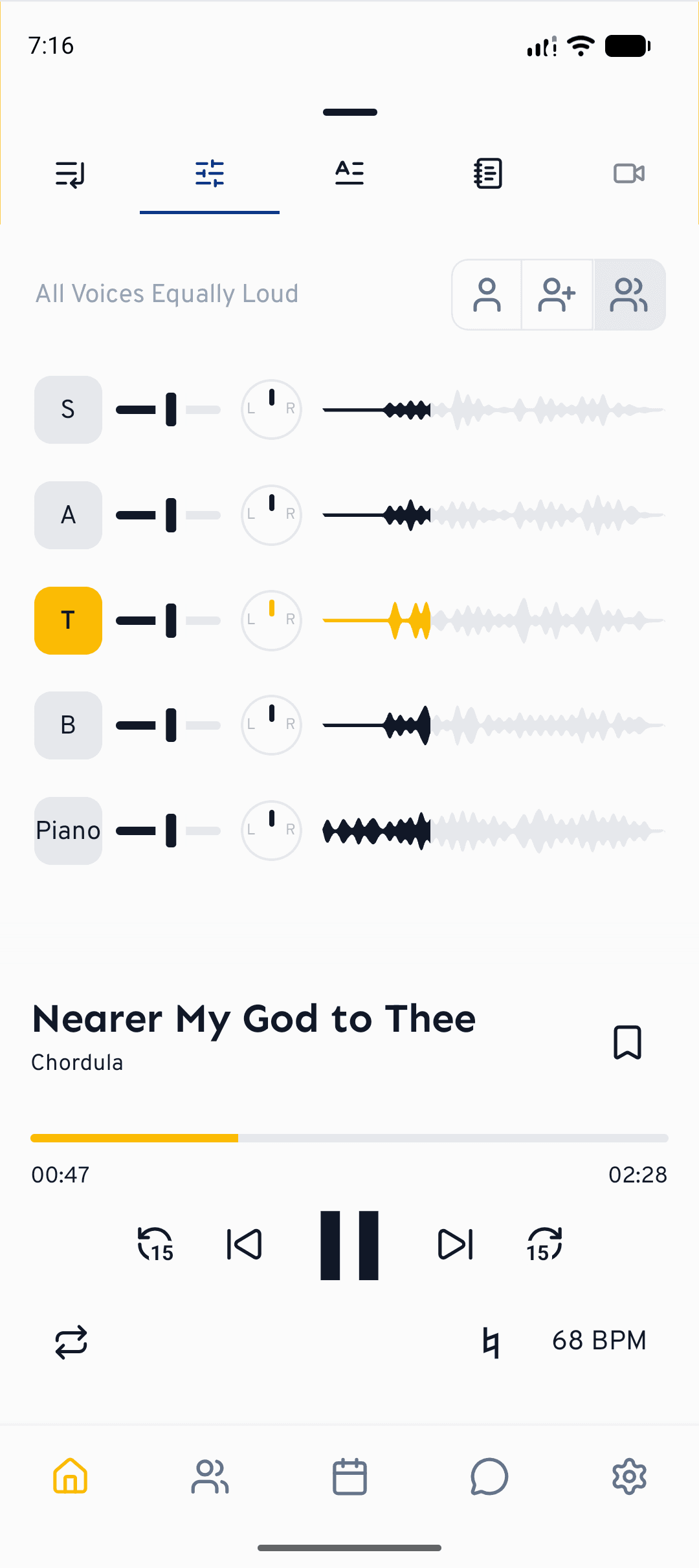
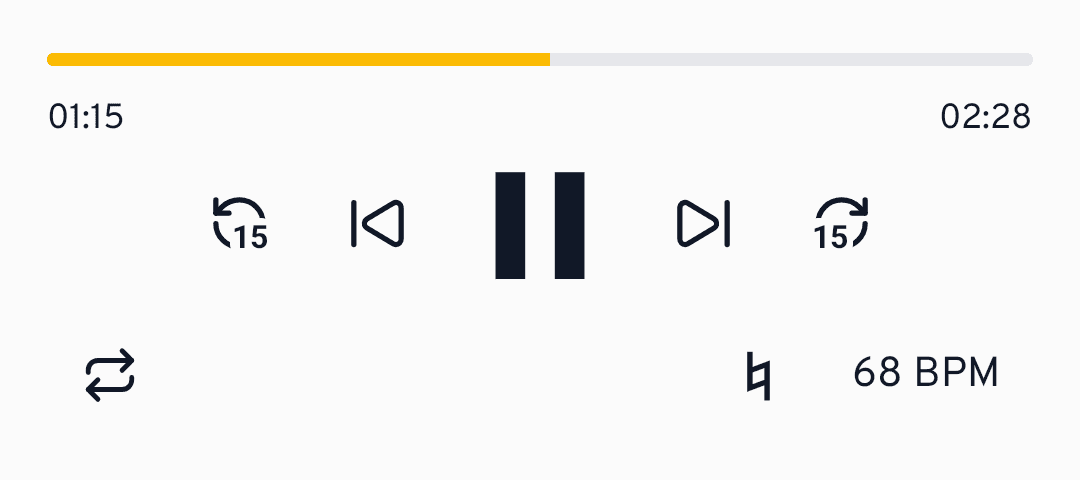
Use the central play / pause button to start and stop. Drag the timeline to jump to any point, or use the 15-second skip buttons to nudge back and forth.
The previous and next buttons step through the songs in your setlist, so you can run a whole programme without leaving the player.
Choose and balance your voices
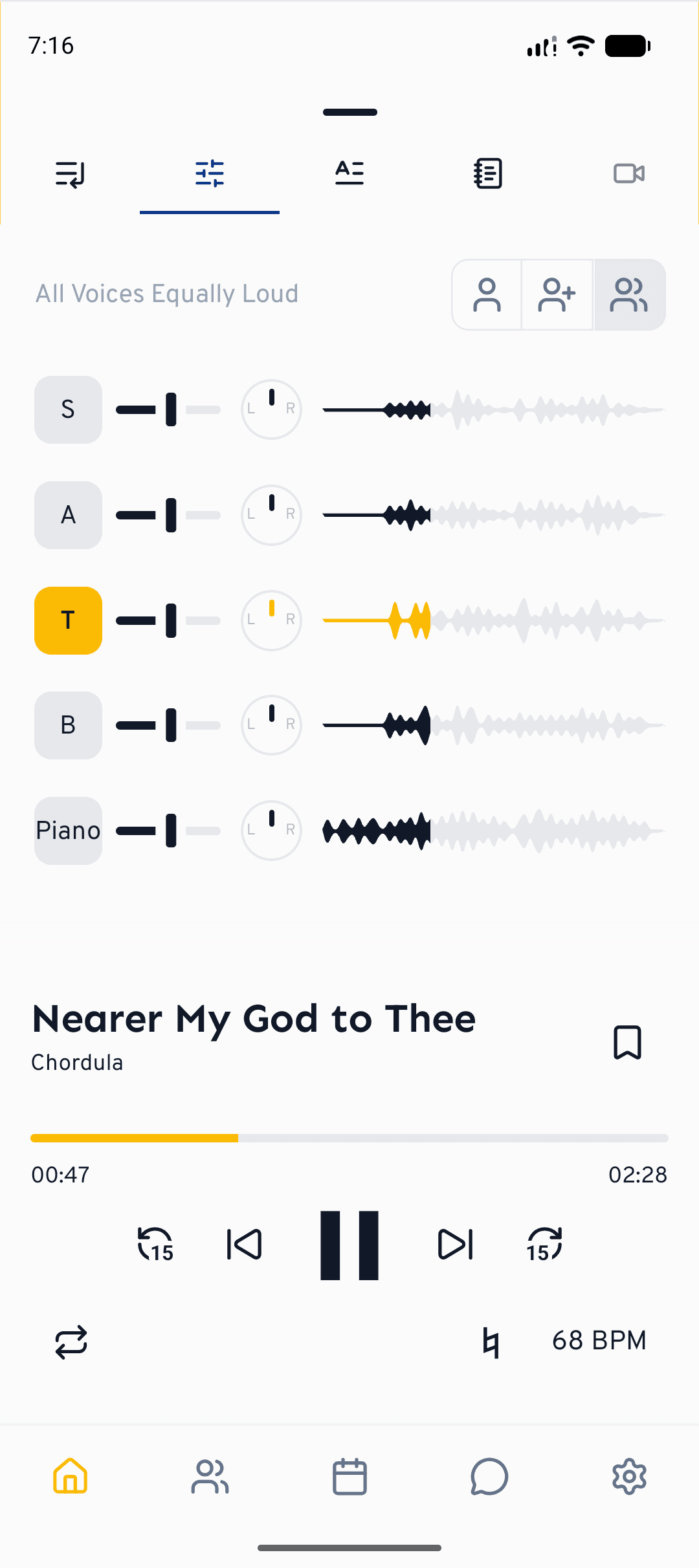
Open the Mixer tab to control which voice parts you hear. The quick presets let you switch in one tap between Own voice, Own voice louder and All voices. Tap or click a voice to mute or solo it, and use its slider to set the exact volume.
Start with Own voice louder so your line sits on top of the others, then switch to All voices once you're confident and want to blend in.

Change the tempo
Use the Speed control to slow a song down while you learn the notes: the pitch stays the same, so everything still sounds in tune. Wind it back up to full tempo as you improve.
Loop a tricky passage
The Repeat button cycles through the repeat options. Set it to repeat the current track to drill a difficult bar over and over without reaching for play each time.

Jump to a section with chapters
If the song has chapters (Intro, Verse, Chorus or Bridge, for instance), you can jump straight to a section in the player without hunting for the spot on the timeline. Chapters are set by whoever creates the song: from ready-made names such as Intro, Verse, Chorus, Bridge, Outro, Interlude, Pre-Chorus and Solo, or with a name of their own. How that works is described in Creating a song from existing recordings.
Bookmarks at difficult spots
Chapters are set by the choir leadership, bookmarks you set yourself. Use Add bookmark to mark the spots you want to practise, and jump straight back to them later. On the web, the timeline draws your bookmarks as small icons; they fill in as soon as playback has passed them. Handy for practising: a setting makes the skip buttons jump between your bookmarks instead of to the previous or next song. More on this in the playback settings.
What's next?
- Go deeper on the mixer in Mixing voices and stereo panning.
- Switch between audio and the score with Playback and sheet music.
- Sing along and get feedback with Sing-along practice.
Still need help?
Can’t find what you’re looking for? Send us a message and our team will get back to you.
Contact support