Annotating sheet music
Mark up your sheets with private or shared notes, and share them within your voice.
App only
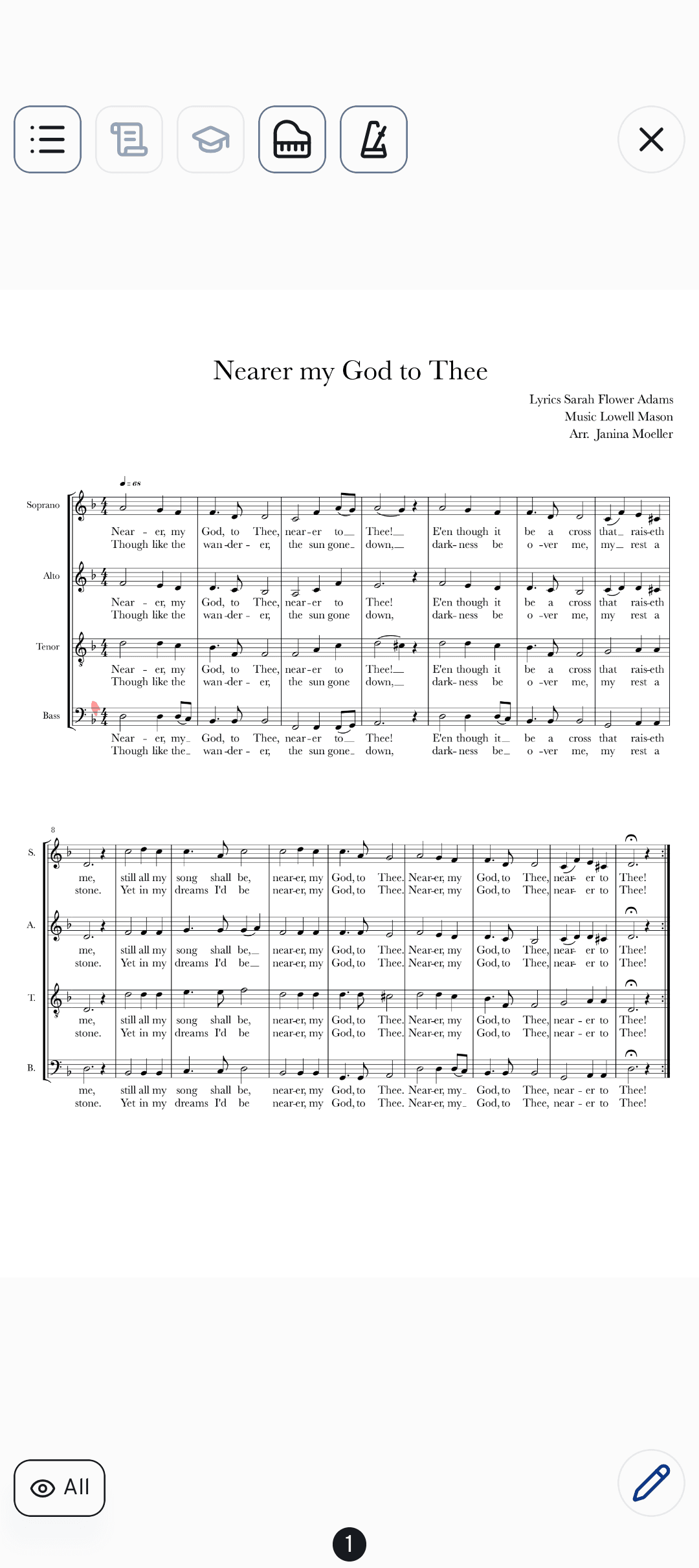
Pencil markings are part of every rehearsal — breath marks, dynamics, that tricky entry you keep missing. In the cori mobile app you can draw straight onto a song's sheet music, keep your notes to yourself, or share them with the rest of your voice. This guide shows you the drawing tools, who sees what, and the handy Jump Marks for navigating repeats.
Open the drawing tools
Open any song and switch to the Sheet music tab (). Your PDF appears; swipe left and right to turn pages.
Tap the pencil button in the corner to open the drawing toolbar. If you use an Apple Pencil or stylus, you can simply start writing and the toolbar opens by itself.
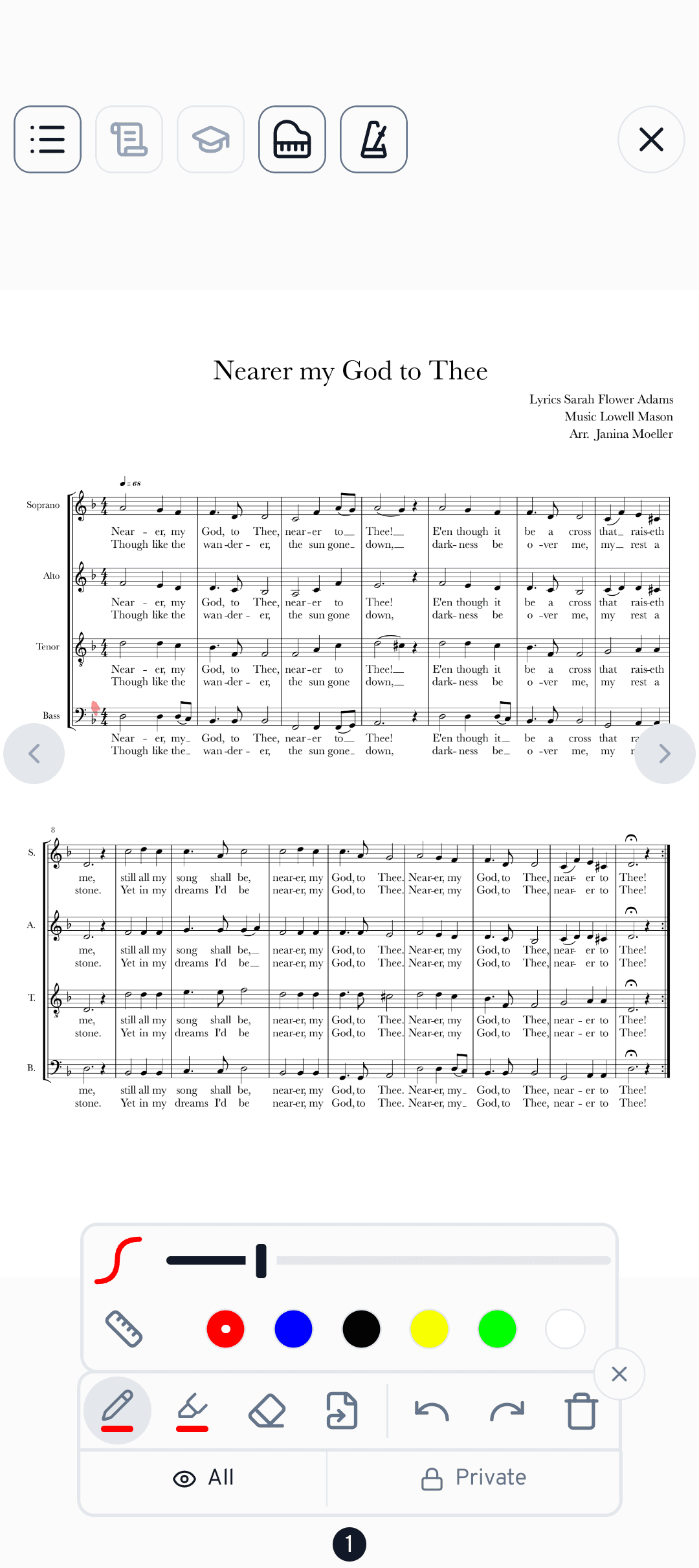
The drawing tools
The toolbar gives you four tools plus undo and redo:
- Pen — freehand writing for notes, accents and fingerings.
- Highlighter — a translucent stroke to mark passages or lyrics.
- Eraser — removes strokes you've drawn.
- Link (Jump Marks) — see below.
Tap a tool a second time to open its settings: a size slider, a row of colours (red, blue, black, yellow, green, white) and a ruler toggle that snaps your stroke into a straight line. Made a mistake? Use undo and redo, or the bin to clear the current page.
Private or shared notes
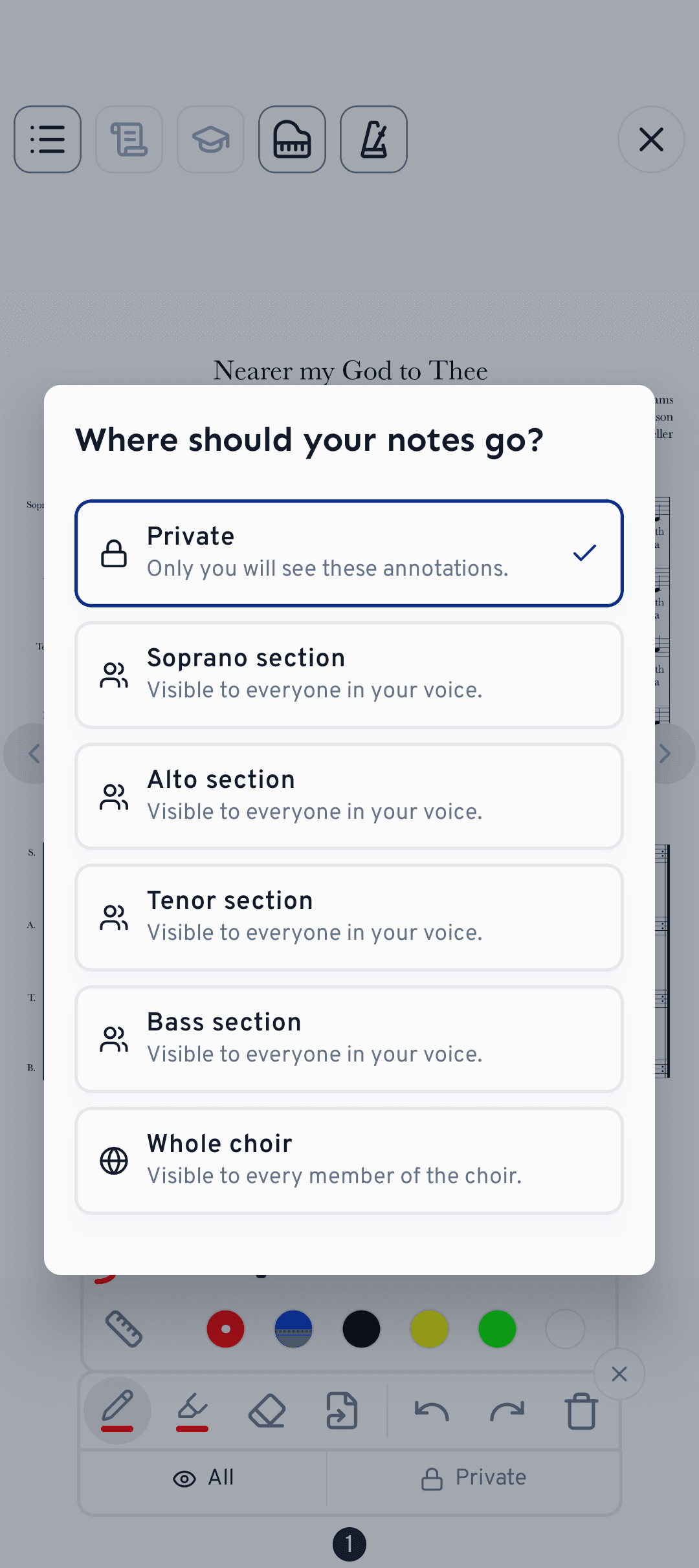
Every annotation belongs to a scope, shown in the toolbar under "Where should your notes go?".
- Private — only you ever see these.
- Section — visible to everyone in your voice part.
- Whole choir — visible to every member.
Choir-wide sharing is reserved for the choir leadership and admins. Ordinary members can share within their own voice only if an admin has turned on Choir settings›Members can share annotations. Pick which layers you see at any time with the Notes chip — show all, hide them, or toggle Private, Section and Choir individually.
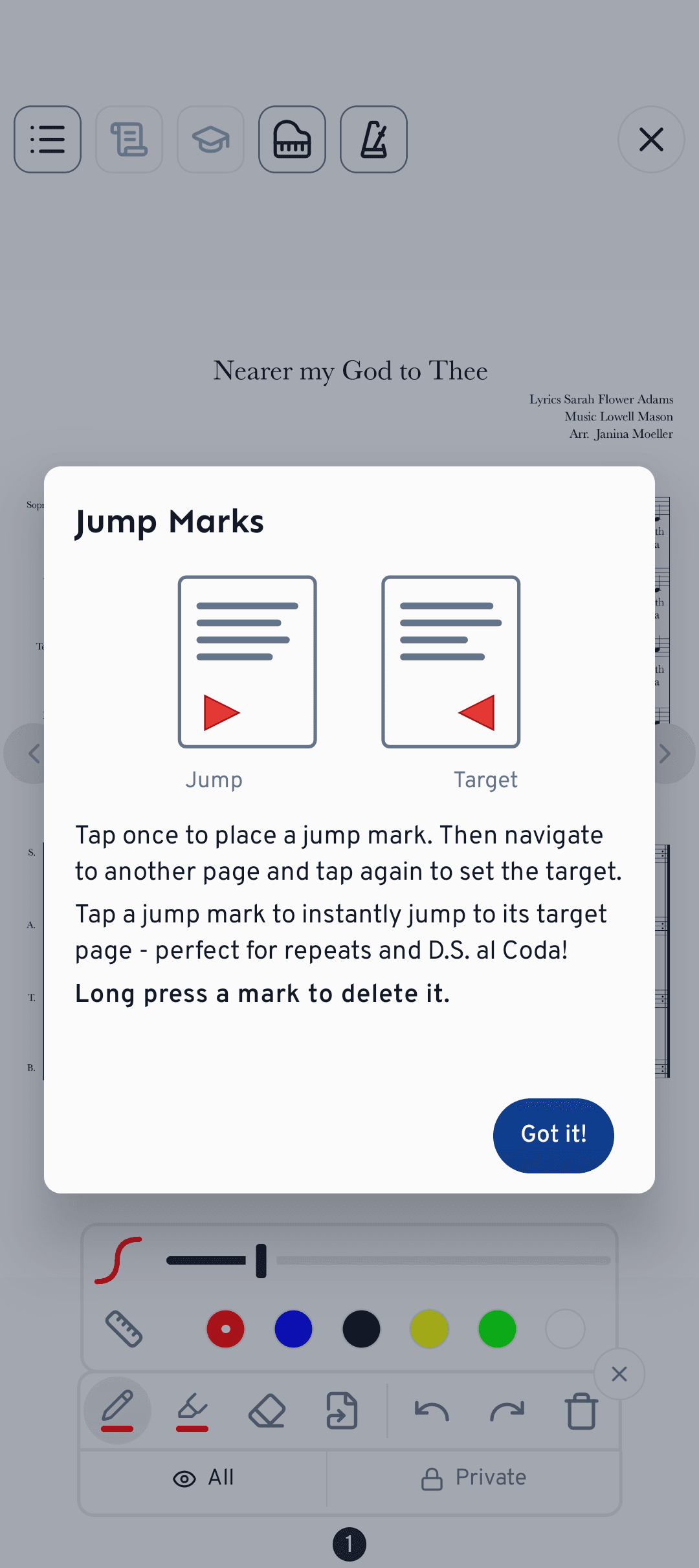
Jump Marks (the link tool)
Jump Marks turn a spot in your score into a tap-to-jump shortcut — ideal for repeats and D.S. al Coda.
Select the link tool and tap once where the jump begins.
Turn to another page and tap again to set the destination. The two points are now linked.
Tap a Jump Mark to leap straight to its target page — no more fumbling for the repeat. Long-press a mark to delete it.
In the page view you can spot linked pages by a small coloured dot on the page number. It has the colour of the Jump Mark pointing to that page, so you can see where a repeat leads while you're still turning pages.
Switch on Rehearsal Mode to keep the sheet music front and centre while you practise — perfect for reading and annotating without distractions.
What's next?
- Keep time and check pitches with the metronome and piano.
- Learn how to export your annotated sheets to share or print. With Include annotations, your markings land straight in the PDF.
Still need help?
Can’t find what you’re looking for? Send us a message and our team will get back to you.
Contact support