Filtering your appointments
Narrow the calendar down to the rehearsals and appointments that matter to you.
Web + app
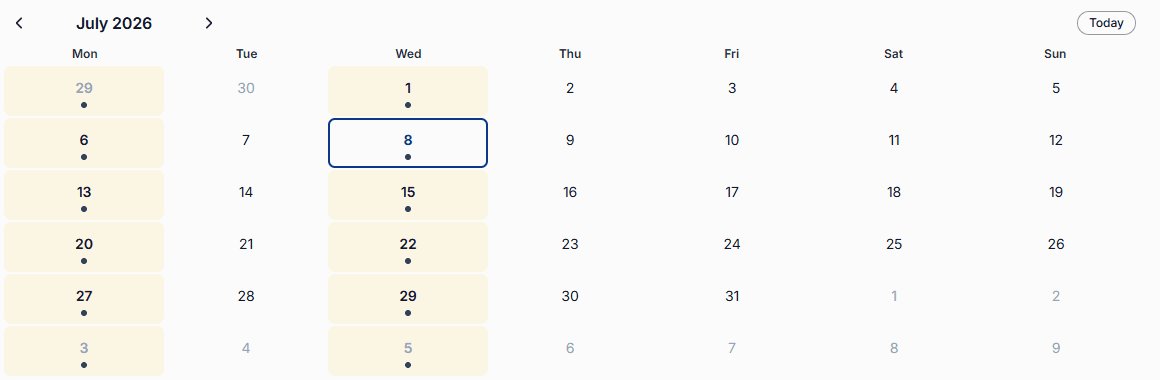
cori's calendar brings every rehearsal, every performance and every event together in one place. As soon as the schedule fills up, a few simple controls help you concentrate on exactly the appointments that concern you. This guide shows how to filter in both the web app and the mobile app, how to move through the months and how cori focuses the calendar on the appointments that really apply to you.
On the web the calendar is a month grid: every day shows its appointments right in the cell, as coloured bars with time and name. The filters sit as chips on the right of the header above the grid. In the iOS and Android app, by contrast, the calendar is a scrollable appointment list with a filter panel of its own. So the filters are in different places, and the app can do more of them. Both are explained below.
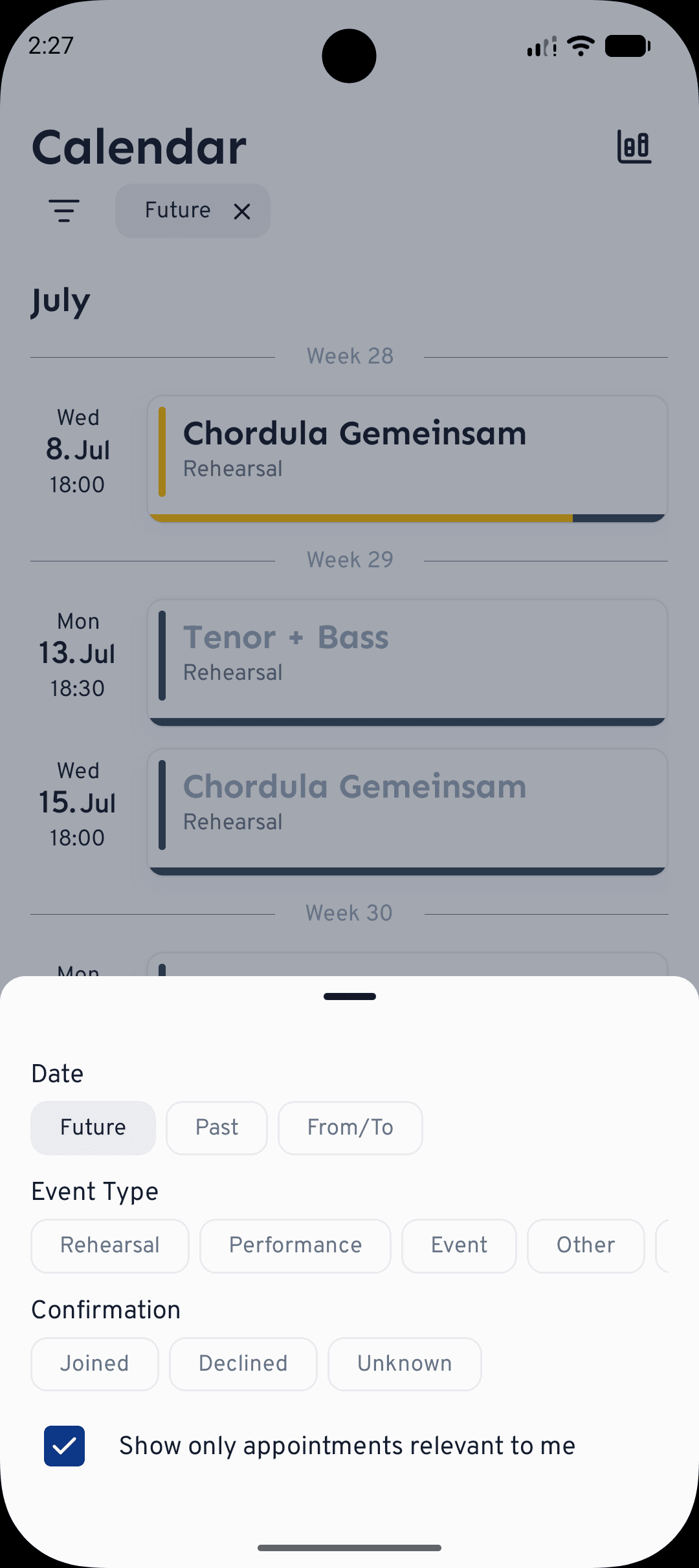
When an appointment is aimed at a particular voice part or group, cori focuses your calendar on what you're actually meant to take part in. On the web this happens automatically; in the app it's the Show only appointments relevant to me switch, which is on by default.
On the web
Open Calendar in the sidebar. On the right of the header above the month grid there is a row of chips, one for each appointment type.
Click Rehearsal, Performance, Event or Other. The chip fills with its colour, and only the appointments of that type stay in the grid.
Click several chips to combine types, for example rehearsals and performances together. A click on a filled chip switches it off again. When no chip is active, all types are shown.
Every chip carries exactly the colour that appointments of that type appear in on the grid: rehearsal turquoise, performance yellow, event purple, other grey. So you don't have to remember which colour stands for what, you read it off in the top right. More on this under Appointment types.

Paging through the months
The ‹ and › arrows on the left of the header take you one month back or forward, into the past as well: the web calendar doesn't hide past appointments. The Today button brings you back to the current month, where today is marked with a filled circle.
What you can click in the grid
- A coloured appointment bar opens the appointment with all its details.
- The small ✓ and ✗ icons on a bar set your response immediately, without opening the appointment. On narrow screens they are hidden, and there you open the appointment instead.
- "+2 more" at the bottom of a day cell (three dots on narrow screens) means that more is happening that day than fits into the cell. A click opens the whole day in a small window.
- An empty spot in a day cell creates a new appointment on that day if you are a choir director or admin. More on this under Creating appointments and rehearsals.
In the app
The calendar in the app is a single appointment list, grouped by month and week, that you scroll through. All of the filtering hides behind the filter icon.
Tap the at the top of the list. A panel slides up with all the options, and every filter you have already set appears as a chip next to the icon (or No filters specified, when none is set).
Under Date, choose Future, Past or From/To. From/To opens a date picker where you set an exact start and end date, handy for finding appointments around a concert weekend.
Under Event Type, choose Rehearsal, Performance, Event, Other or Birthday. Under Confirmation, choose Joined, Declined or Unknown, matching how you have already responded. If you sing in more than one choir, the Choirs row lets you concentrate on just one of them.
Every active filter is a chip next to the filter icon. Tap its ✕ to remove exactly that one, without opening the panel again.
Filters take effect immediately. On the web, toggling a chip never reloads the page and never jumps to a different month. In the app, the list stays anchored exactly where you were when past appointments are shown, instead of jumping to the top. That way you never lose your place while you narrow things down.
What's next?
- Find out how to create and plan appointments.
- See how to accept, decline and track attendance.
- Understand what the four appointment types and their colours stand for.
Still stuck? Head to the contact page and our team will be happy to help you.
Still need help?
Can’t find what you’re looking for? Send us a message and our team will get back to you.
Contact support