Inviting members to your choir
Invite singers with a link or join code and manage roles and voice pitches.
Web + app
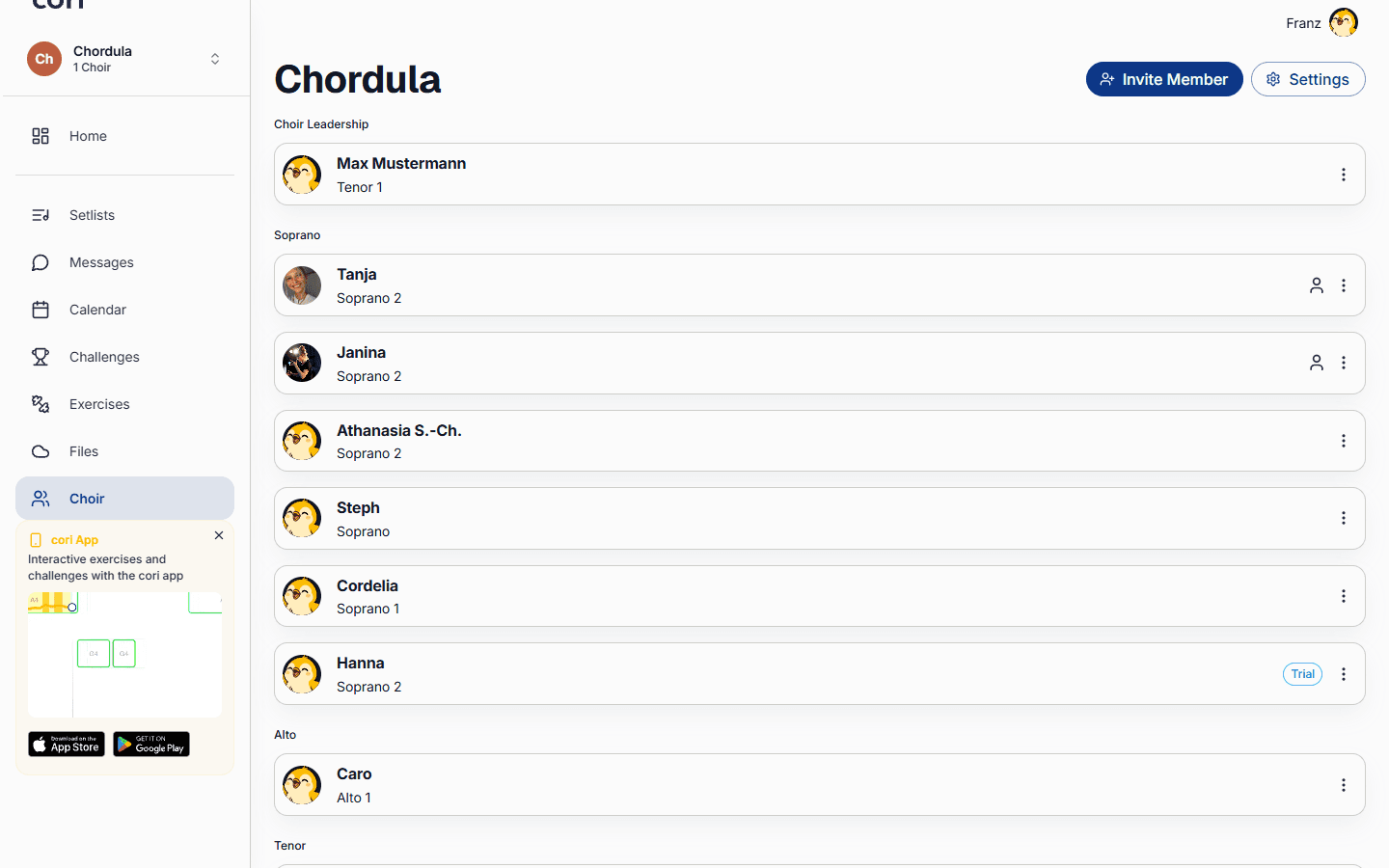
Once your choir exists, the next step is filling it with singers. cori makes this really easy: you share a single invitation link (or a QR code on your phone), and everyone who taps it joins straight away. This guide shows you how to invite people, which choir roles there are, and how to manage members and voice pitches.
Inviting and managing members is handled by the choir leadership and admins. You'll only see the Invite Member button and the member options menu if you're the choir leadership or an admin.
Share your invitation link
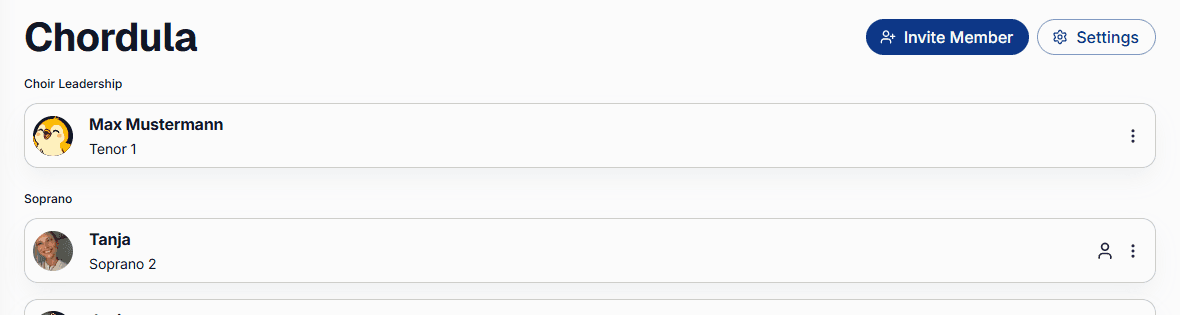
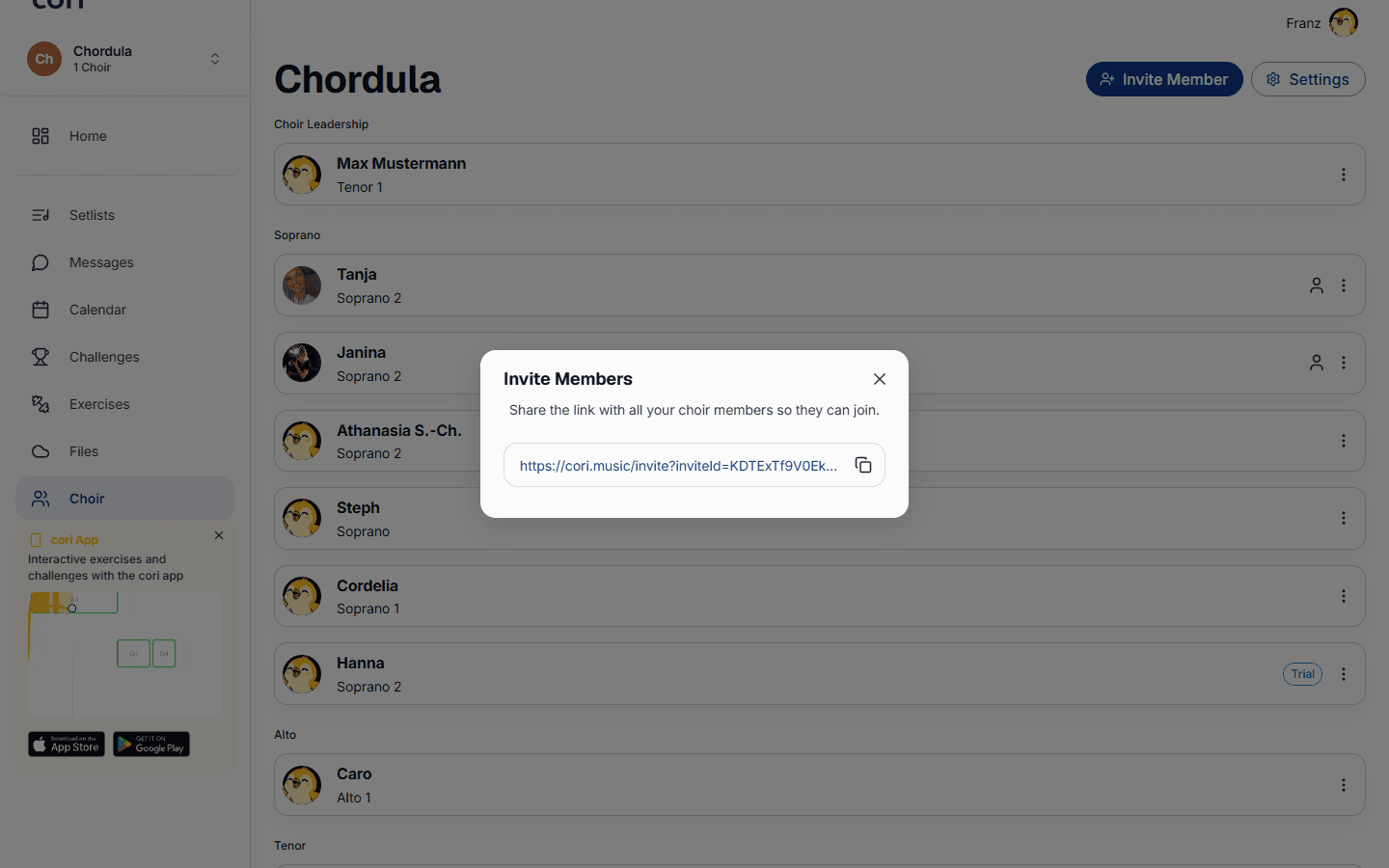
Go to Choir›Invite Member. cori creates a reusable invitation link for your choir.
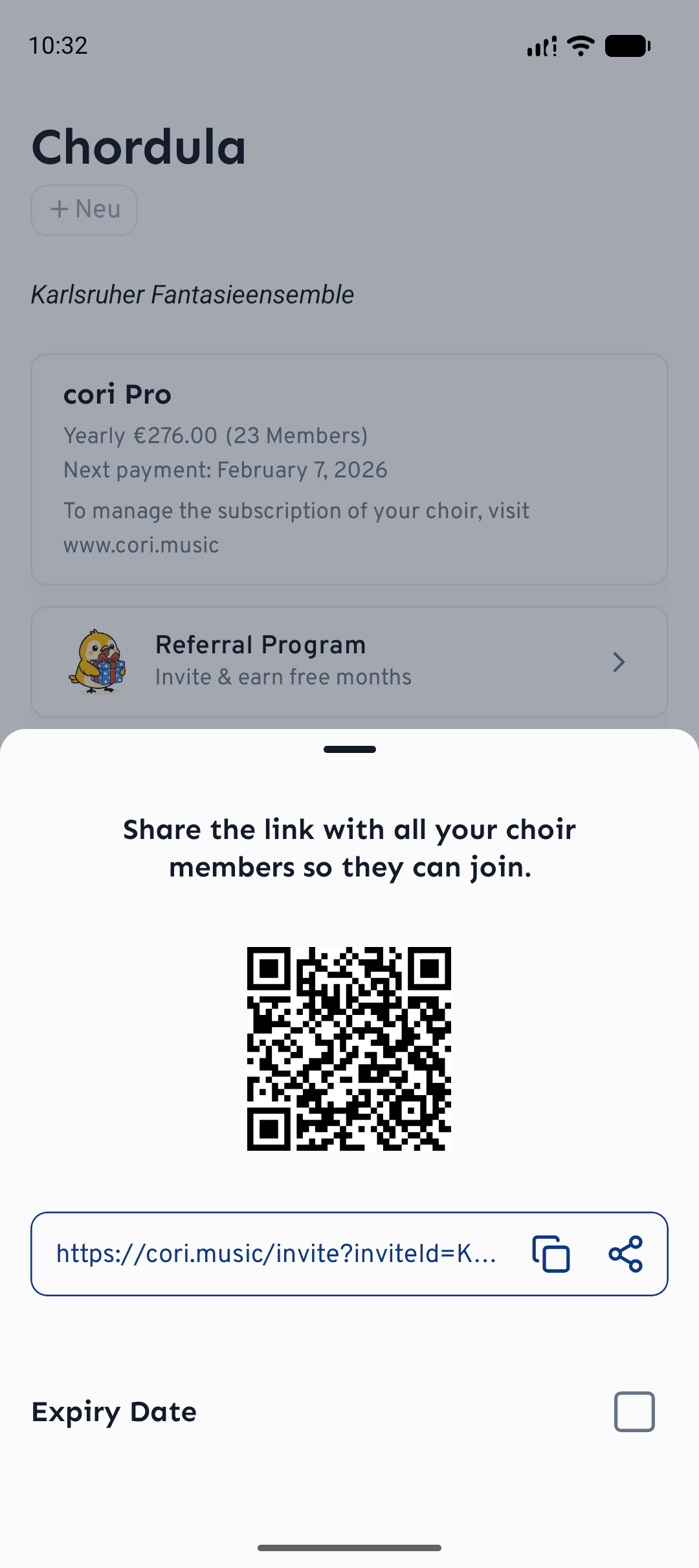
On the web, tap the copy icon to put the link on your clipboard, then paste it into WhatsApp, an email or wherever your singers can be reached. On your phone you can share it directly, or let people scan the QR code.
On your phone you can give the link an expiry date so that it stops working after two weeks, for example — handy if you only want to take on a particular group.
Inviting right after you create the choir
Straight after you create a choir, cori walks you through a short setup. Its second step, “Get your singers in”, shows the QR code for scanning at rehearsal and the Share via WhatsApp button, which prepares a ready-made message with the link for your choir's group chat. Next to it you can Copy the link or send it to another app via Share link. As long as your choir has fewer than three members, you'll find the same actions as a card at the very top of the home screen. More on this under Creating a choir.
How singers join
When your singers open the link in a browser, they first see the invitation “You've been invited to join” with the name of your choir, the choir leadership and the members who are already on board. From there they install the cori app or choose Or continue in the browser. After the sign-up steps they pick their voice pitch from the voices you've set up for your choir, so that they immediately get the right practice tracks. Anyone who installs the Android app from the invitation via Google Play lands straight at joining your choir once they've signed in. There's no approval queue — anyone with a valid link joins instantly. So treat it like a key and set an expiry if that matters to you. Members of an organization such as 6K UNITED! join with a short access code instead of a link.
Every new member is automatically added to your free trial and your subscription, so you never have to add seats by hand.
Roles: choir leadership, admin and member
- Choir leadership — whoever created the choir. Has full control and can hand leadership over to someone else.
- Admins — trusted members you give admin rights to. They can invite people and manage songs, the calendar and members.
- Members — your singers. They practise, read sheet music and join in chats.
Manage members and voice pitches
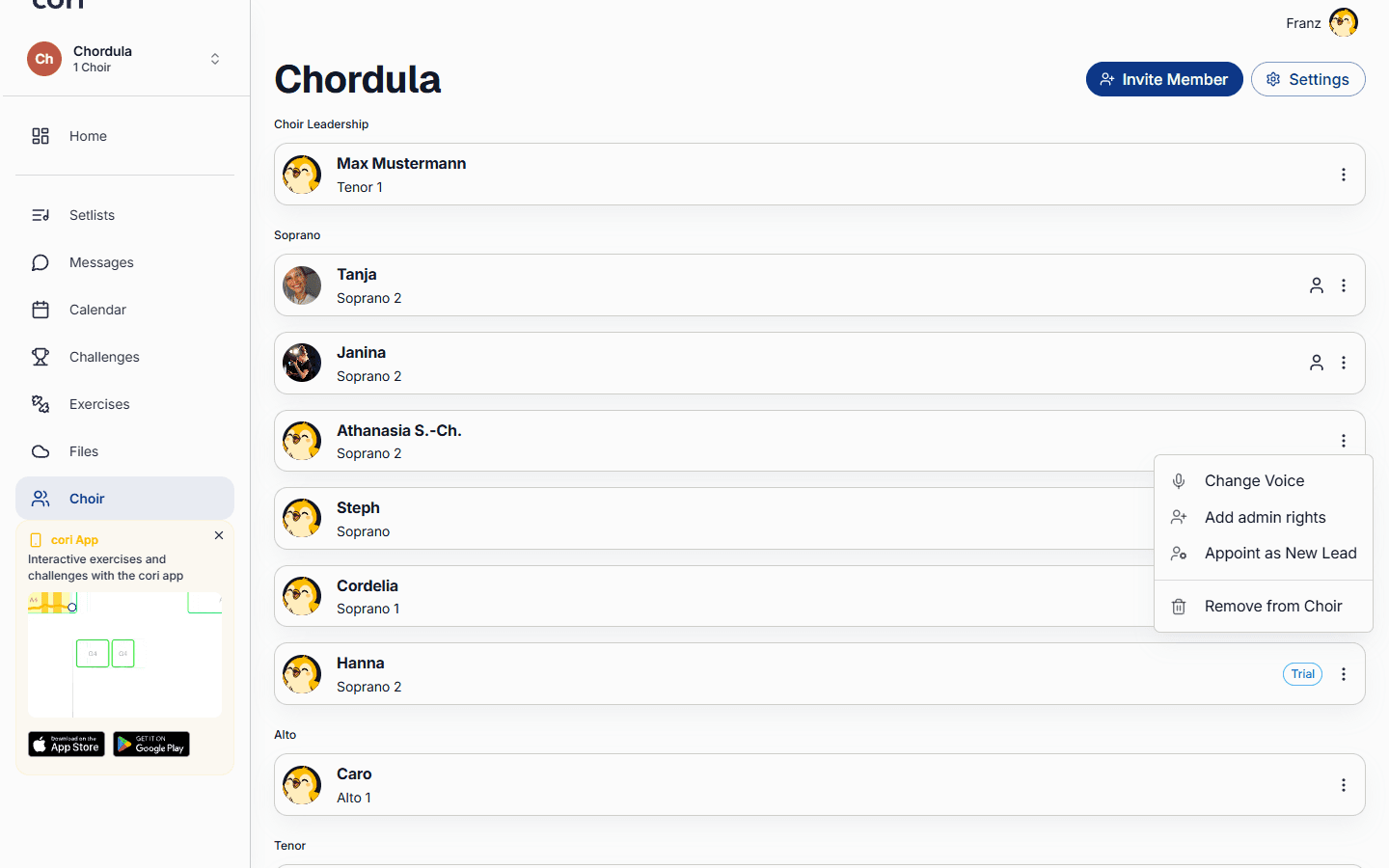
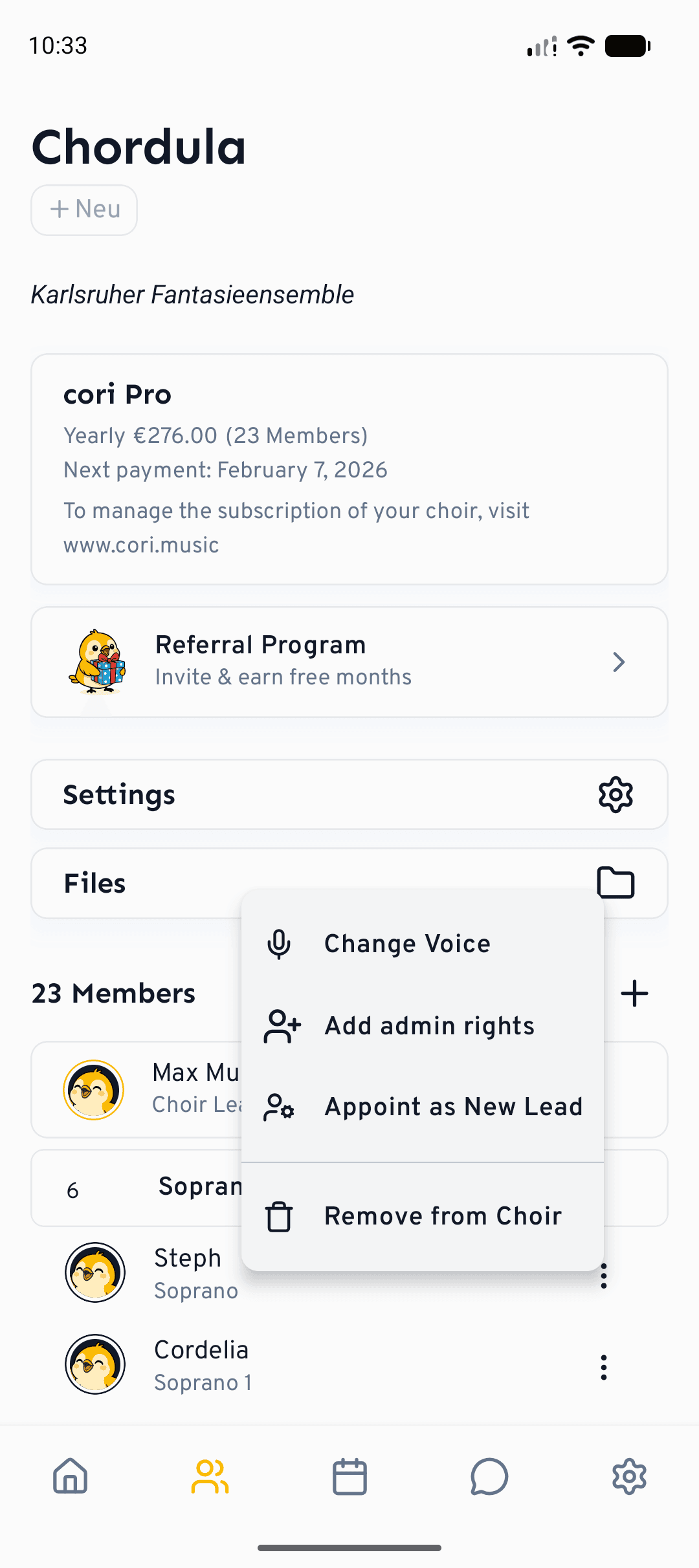
Open Choir, find the singer and tap the ⋮ menu next to their name:
- Change Voice — correct or assign someone's voice pitch.
- Add / Remove admin rights — make a member an admin, or take it back.
- Appoint as New Lead — transfer overall responsibility for the choir.
- Remove from Choir — take someone off the list.
What's next?
- New here? Start with Getting started with cori.
- Keep your choir talking with Chats and surveys.
Still need help?
Can’t find what you’re looking for? Send us a message and our team will get back to you.
Contact support