Setting and tracking attendance
Tell your choir whether you're coming to a rehearsal, and let the leadership see who's in.
Web + app
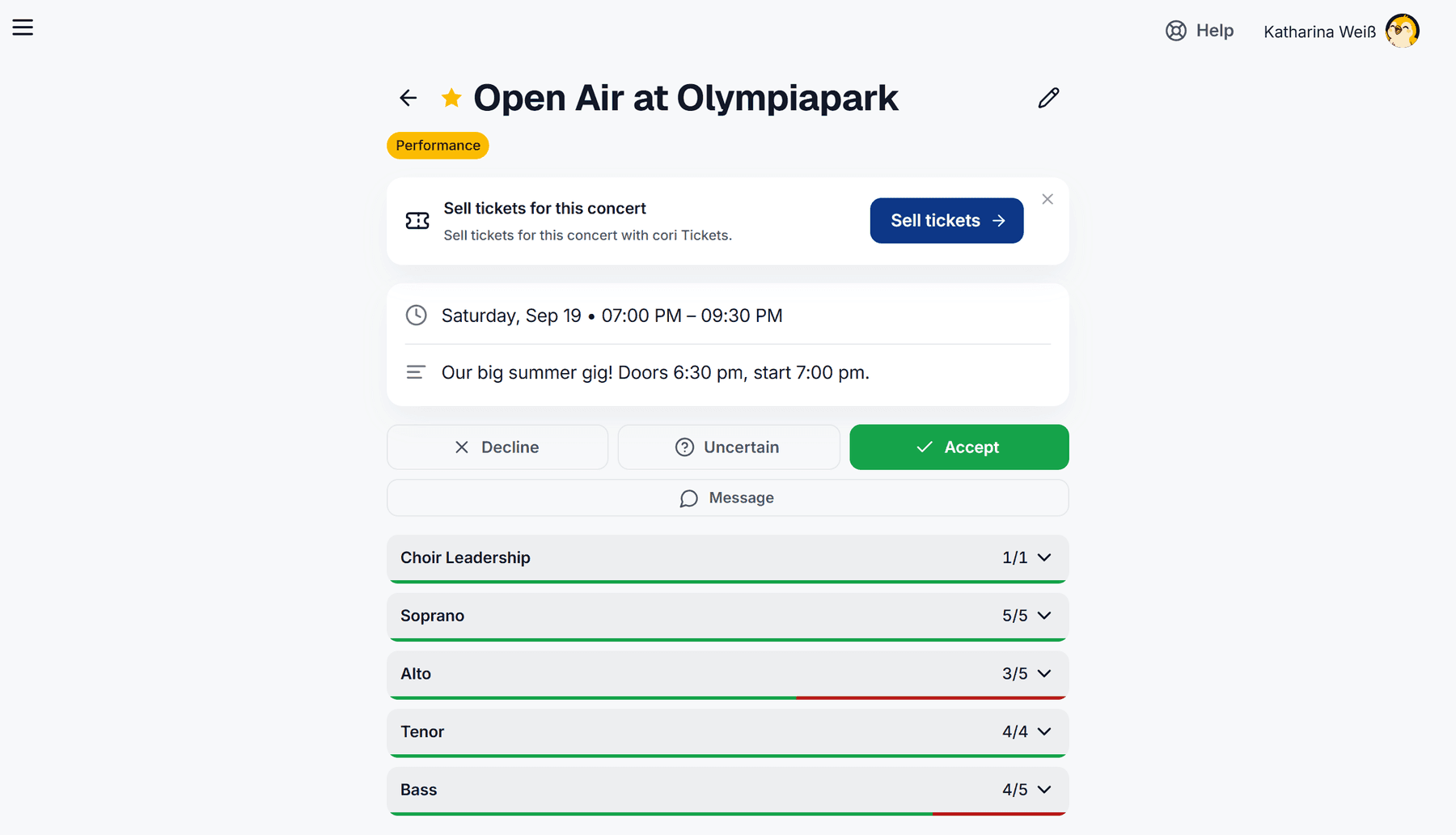
Every rehearsal and every performance in cori asks one simple question: are you coming? Telling your choir takes a single click, and it gives your leadership a clear picture of who they can count on. This guide shows you how to set your own status, add a short message and, if you manage the choir, see the full attendance overview.
The quickest way on the web: straight from the calendar
You don't have to open an appointment at all to respond. Every coloured appointment bar in the month grid carries two small round icons on the right:
- ✓ means "I'm in".
- ✗ means "I can't make it".
One click sets your response straight away, and the pressed icon stays highlighted. Click the same icon again and you take your response back, and the appointment is undecided once more.
The same two buttons are on the dashboard in the Next Appointment card.

Both the appointment bars in the calendar and the dashboard card show a thin progress bar under the name. The filled portion is the share of invited members who have already accepted. That way you can see at a glance how full a rehearsal is getting, without opening it.
Responding on the appointment itself
Sometimes you want to see the details first. To do that, click the name of the appointment in the calendar.
Clicking an appointment bar in the calendar opens the detail page. At the top you see the name and the coloured appointment type, below it the date and time, the description, the location on the map and any setlist that is attached.
Pick one of the three buttons: Decline, Uncertain or Accept. Your choice is saved immediately, and the filled button shows where you currently stand.
Plans change, so just click a different button.
Two things take the answer out of your hands: once the choir leadership has entered your attendance themselves, you can no longer change it. And after an appointment has ended, attendance is closed. In both cases cori explains under the buttons why they are greyed out, and the ✓/✗ icons disappear from the calendar.
Always at every rehearsal? Then the choir leadership can set a Default attendance so that new appointments start out as accepted (or declined) automatically. Then you only have to react when something is different for once. More on this under Automatic attendance.
Adding a reason or a "running late" note
You can attach a short message to your response, handy for explaining why you can't make it, or for letting everyone know you'll be a little late. On the detail page, click Message under the attendance buttons and then pick a quick delay (5, 10, 30 or 60 minutes) or write your own note. It works exactly the same way in the app.
Your message then appears as an orange note above the member list and next to your name, so the leadership sees it at a glance. Use the ✕ inside it to remove it again.
Seeing who's coming (for managers)
Open any appointment and scroll to the member list. The members are grouped by the voices your choir has set up under Choir settings›Choir voices, so if you show divisi parts separately, by Soprano 1 and Soprano 2 for instance. Each voice part is a row with its acceptance count (for example 5/5) and a bar underneath: green for the share who accepted, red for the share who declined. A click expands the group and shows its members. Every profile picture carries a ring following the same logic, green for accepted, red for declined; with no response there's no ring. Click a message icon to read a member's note. If you need to, you can set the status for a member yourself: open the menu in their row and choose Attending or Not attending.
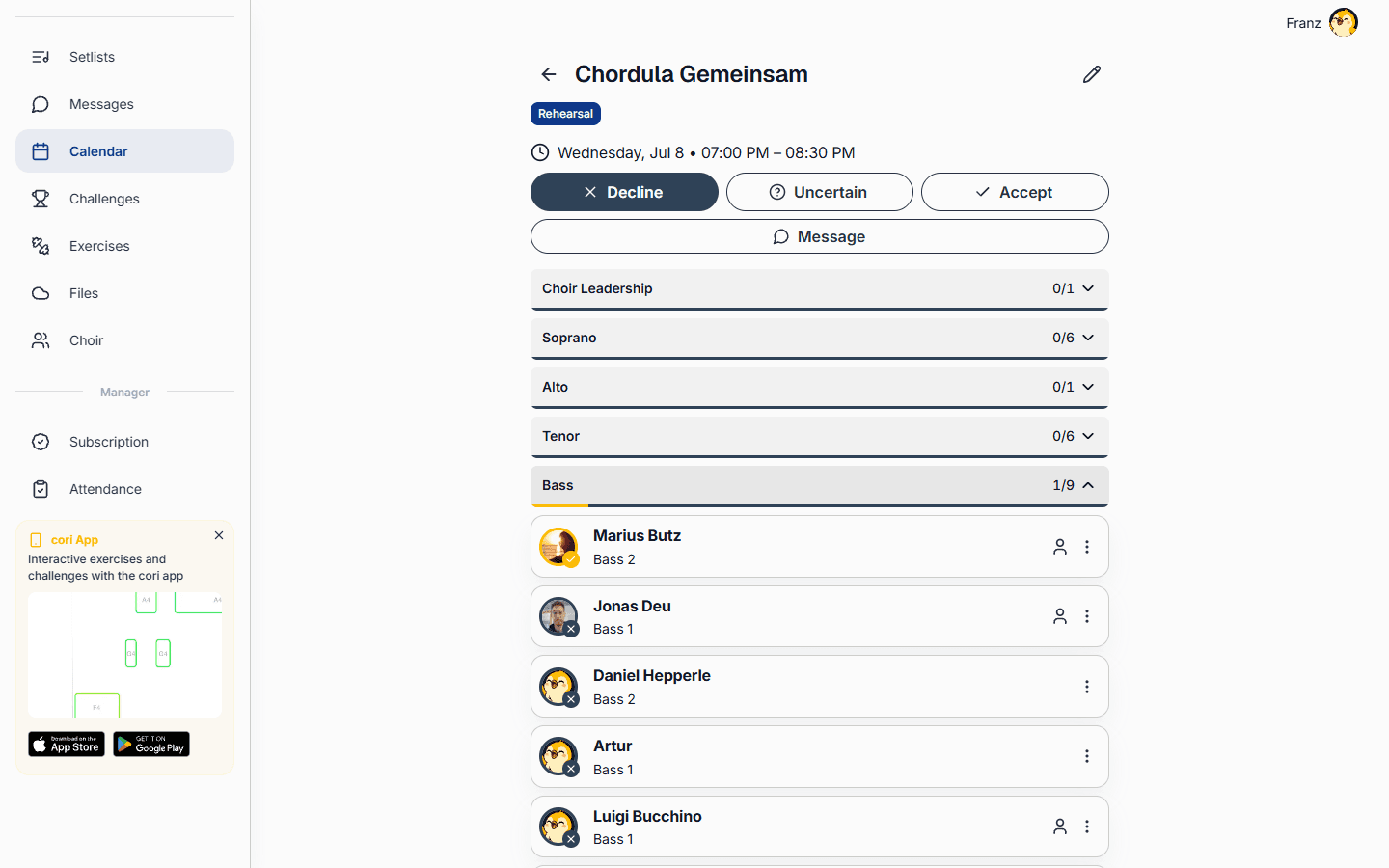
The attendance screen
For the big picture, open Attendance in the sidebar of the web app. It brings all appointments together in one place:
- Switch between Upcoming, Past and a custom period, and filter by appointment type or voice.
- The overview cards show your choir's average attendance, response rate and totals.
- A matrix puts every member against every appointment and marks each entry as accepted, declined, no response or not invited.
- With Export CSV you download the data for your records.
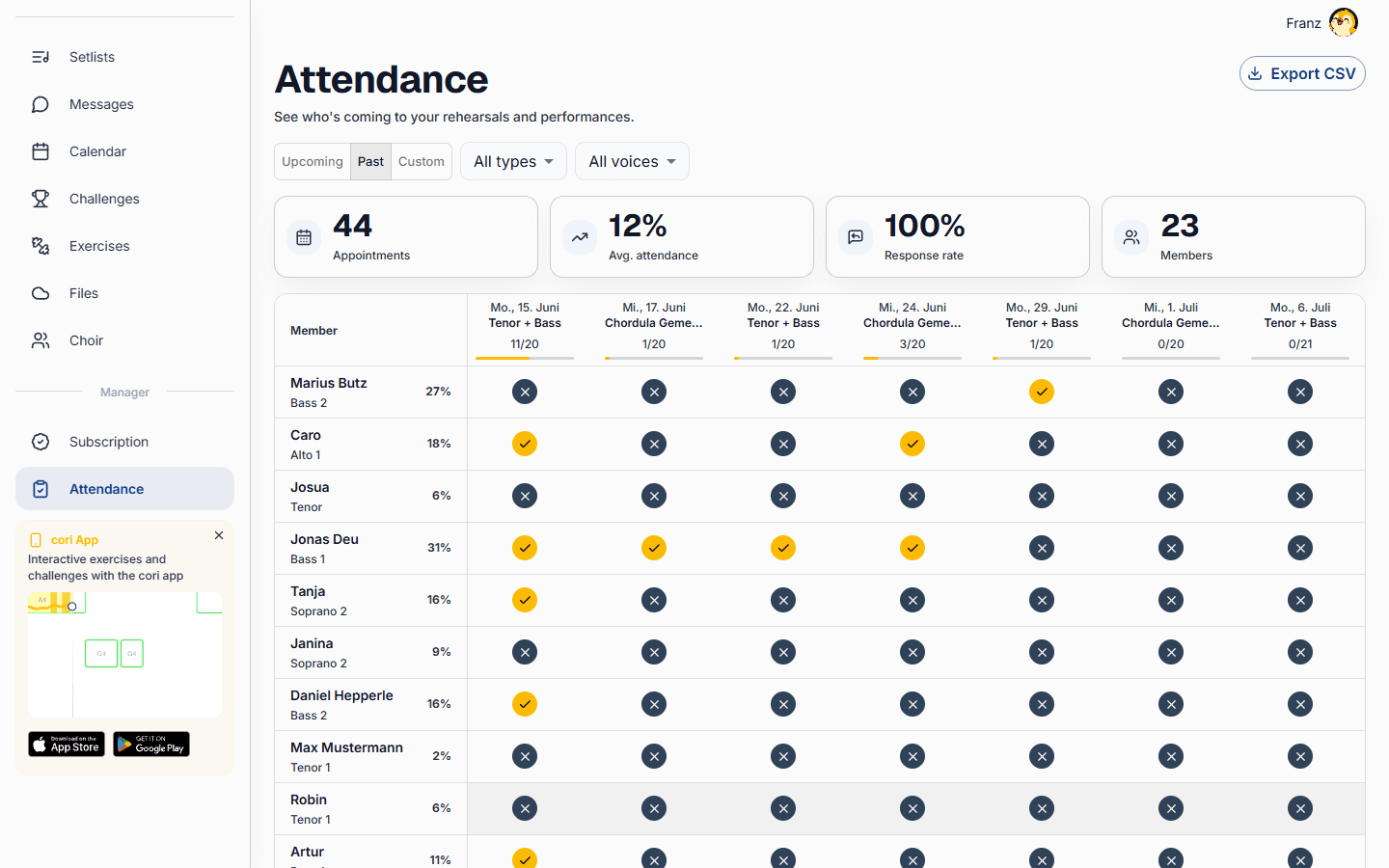
The combined attendance screen exists only in the web app at cori.music and only for the choir leadership. In the phone app you manage attendance directly on the appointment itself; singers answer per appointment anyway.
What's next?
- Learn how to create rehearsals and appointments in the calendar.
- Keep your calendar tidy with appointment filters.
- Look at the bigger picture over weeks: attendance overview and export.
Still need help?
Can’t find what you’re looking for? Send us a message and our team will get back to you.
Contact support