Using the Drive
Store and share your choir's files – PDFs, recordings and documents – in one central place, on the web and in the app.
Web + app
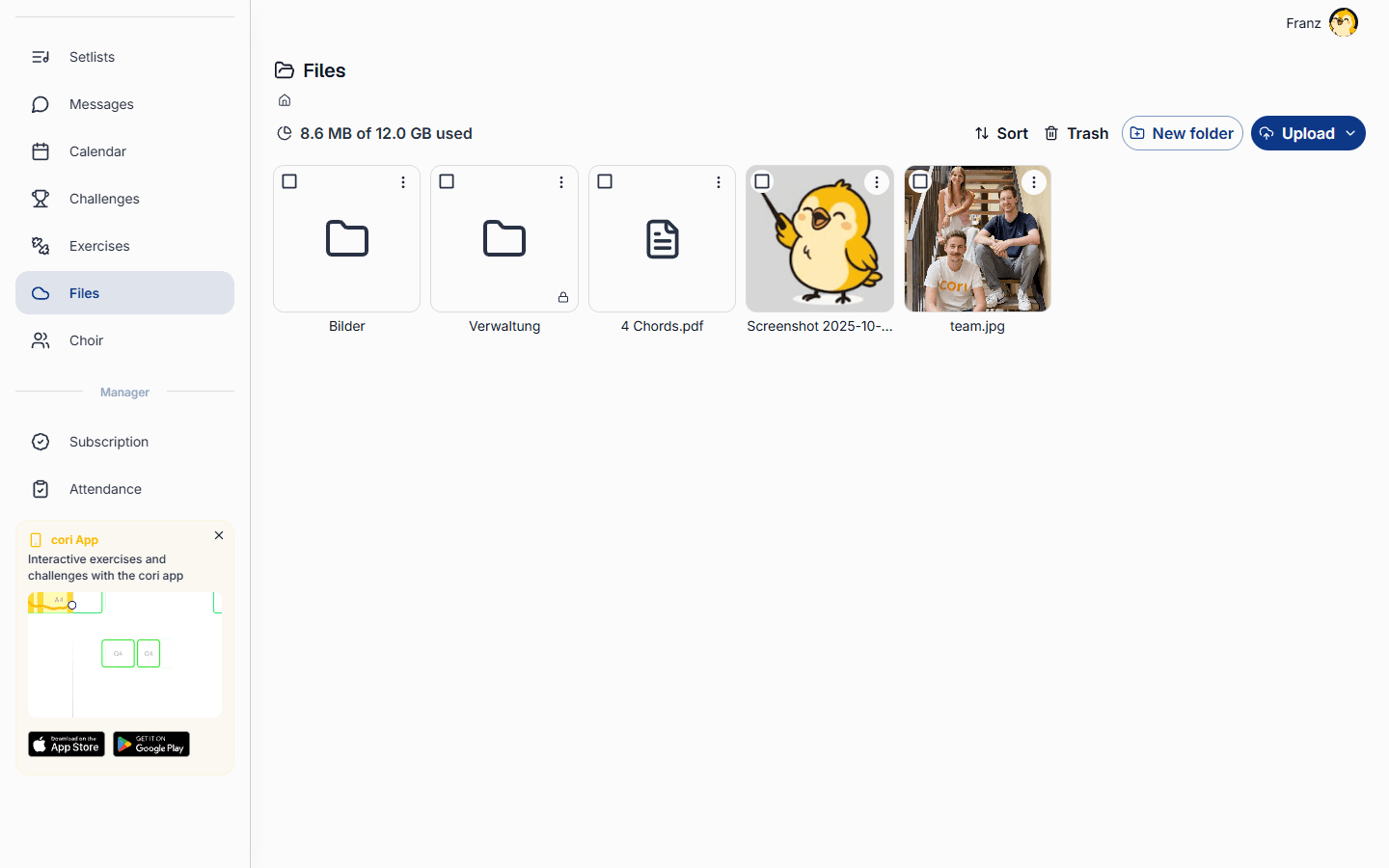
The Drive is your choir's shared filing cabinet. Keep PDFs, audio recordings, posters and every other document in one place, sorted into folders, so that every singer can quickly find what's needed. On the web you'll find it in the sidebar under Files; in the app you open the Choir›Files card. It's the same Drive on every device.
Choir leadership and admins can upload files, create folders and move, rename, share or delete things. Everyone else in the choir can browse, open and download whatever has been shared with them – on the web just as in the app.
Upload your files
On the web, choose Files in the sidebar. In the app, open the Choir tab and tap the Files card to see your choir's folders and documents.
Click Upload and choose Upload files or Upload folder – or simply drag files from your computer straight onto the page. Large files upload in the background, so you can keep working while they finish.
Tap the button and choose Upload files, then From Files or From Photos. A small badge on the shows how many files are still uploading.
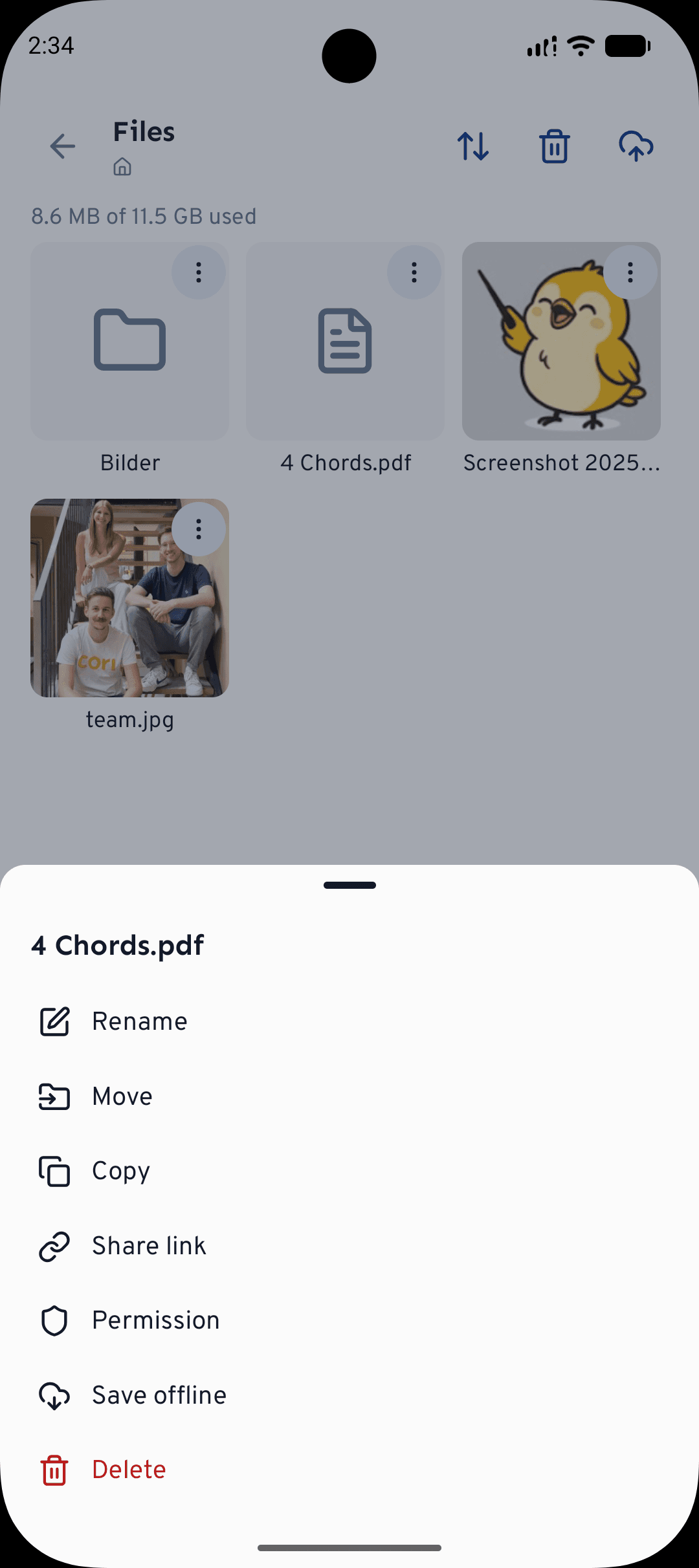
Drag-and-drop and Upload folder are web-only. In the app you can upload straight from your Photos, open and play files inside the app, and tap Save offline on any file so it's available without a connection too.
Sort into folders
Tidy files make rehearsals easier. Choose New folder (in the menu in the app) to create one – for example Sheet music, Recordings or Concert 2026. To tidy up, open the ⋮ menu on any item and choose Rename, Move or Copy. On the web you can also drag a file or folder onto the folder you want.
In an item's ⋮ menu, open Permission to decide who sees it: All members, Admins only or Inherit from folder. Use Admins only for things like contracts or drafts that aren't ready for the whole choir yet – they carry a small padlock badge.
Open and download files
Tap or click any file to open it. In the app, the built-in viewer previews images, PDFs, text and video, plays audio with a waveform and lets you swipe from one file to the next. To keep a copy, use Download to save it through your device, or Save offline so that it stays available without a connection.
Share with your choir
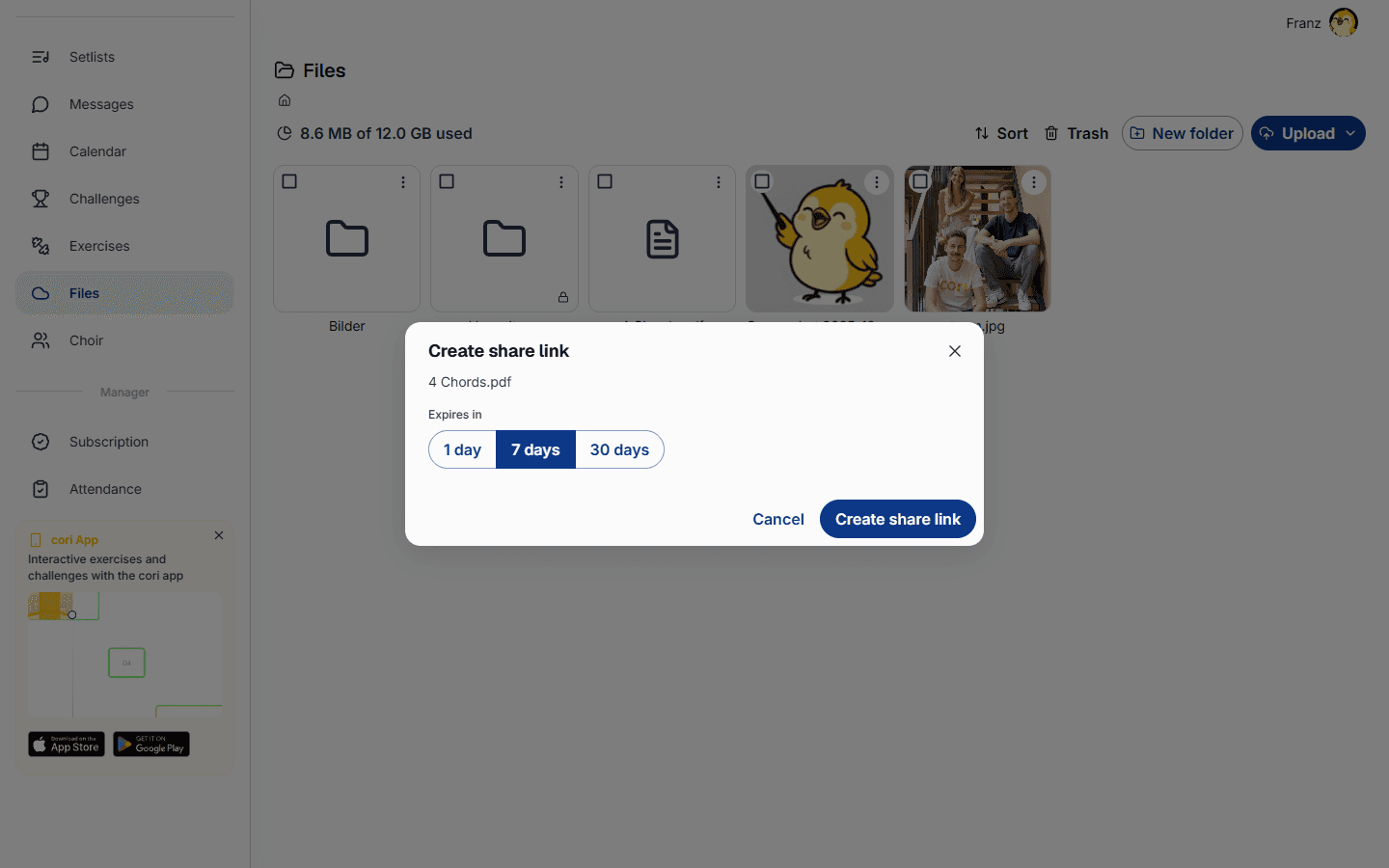
Everything you upload is shared with your choir straight away – members see it the next time they open Files. To share a single file or folder with someone outside the choir, open the ⋮›Share link menu, choose how long the link should be valid (1, 7 or 30 days), then copy or send it. Anyone with the link can open the item until it expires, and you can revoke a link at any time.
Delete and restore
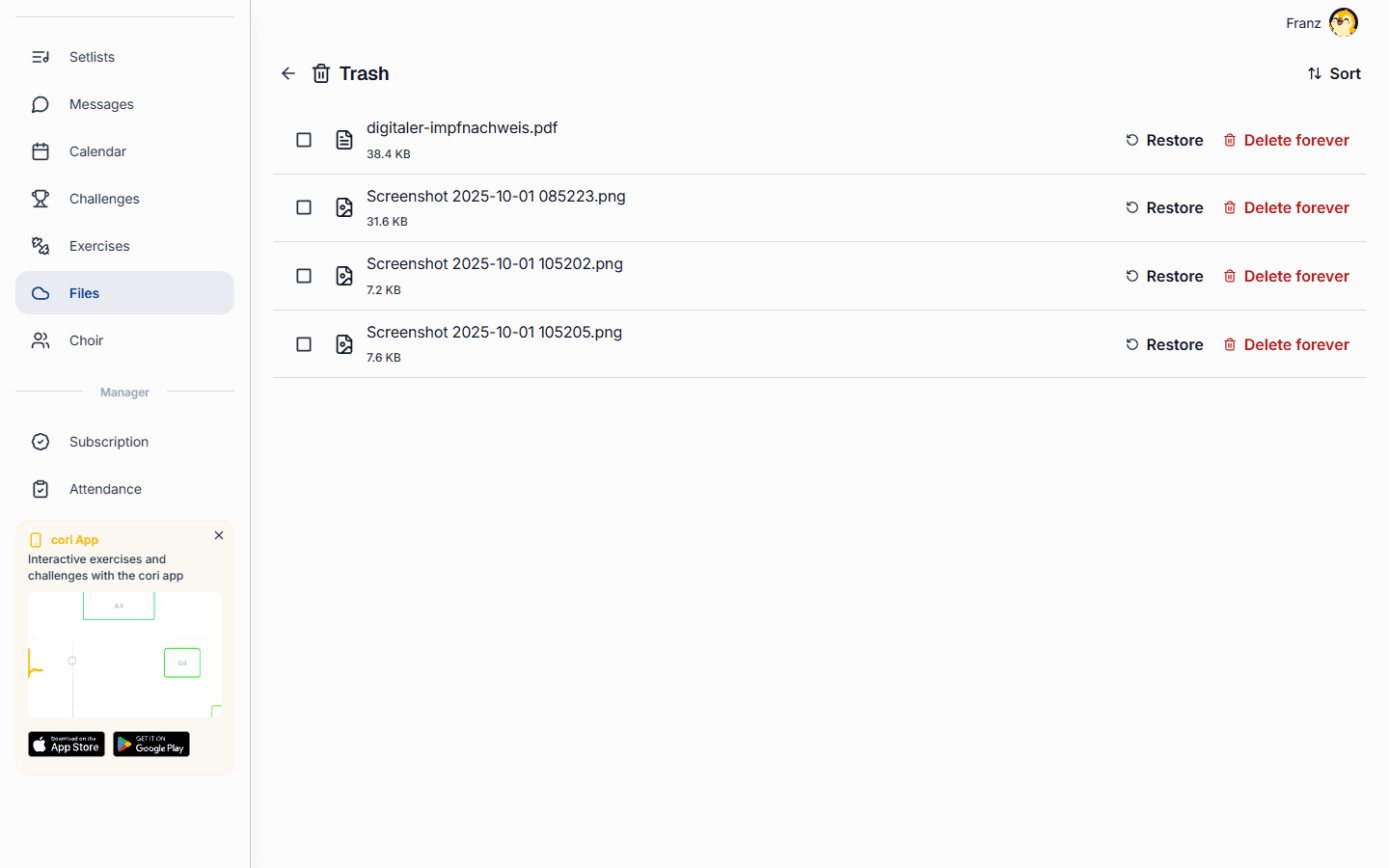
When you delete a file or folder, it moves to the Trash instead of being removed for good. Open the Trash (the at the top in the app) to bring back something you still need with Restore, or to free up storage with Delete forever. Files and chat attachments share your choir's storage space – if you empty the Trash now and then, there's room for new uploads.
What's next?
- New to cori? Start with Getting started with cori.
- Put together the programme for your next concert in Building a setlist.
Still need help?
Can’t find what you’re looking for? Send us a message and our team will get back to you.
Contact support